Dynamic Island for Windows
A floating island at the top of your screen that shows what is playing, incoming notifications, weather, battery and…
Productivity
Talk to your PC — it opens apps, searches the web and handles the boring clicks
Say what you want and it happens: open File Explorer, search the web for something, find a file, launch an app, change the volume, take a screenshot or read out an answer. A wake word listens locally, so nothing is sent until you actually ask.
Ask in your own words. No rigid phrase list to memorise.
Launch programs, jump to a folder in File Explorer or open a specific settings page.
Runs the search and reads the answer back instead of leaving you a blank browser tab.
Locate documents by rough description, date or file type across your drives.
Volume, brightness, media keys, screenshots, sleep, lock and shutdown.
Wake-word listening never leaves your PC, with push-to-talk and a mic kill switch.
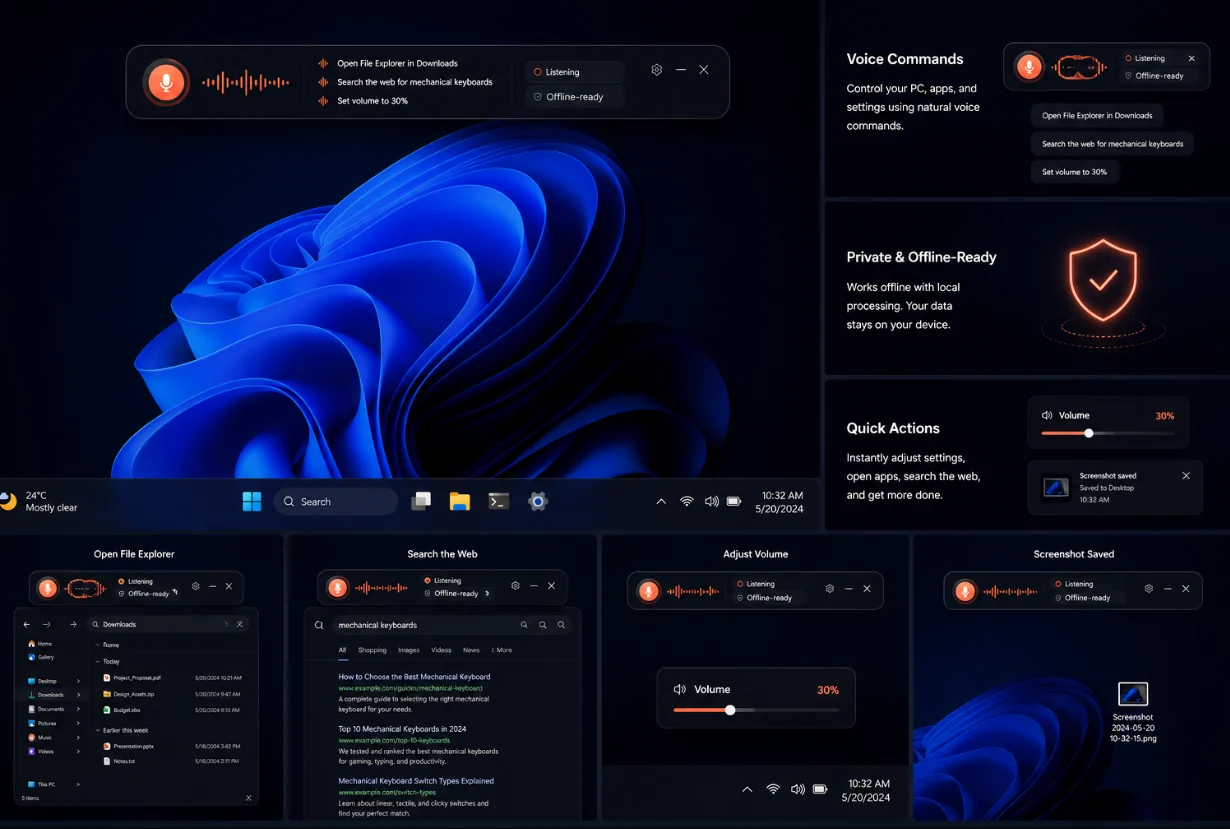
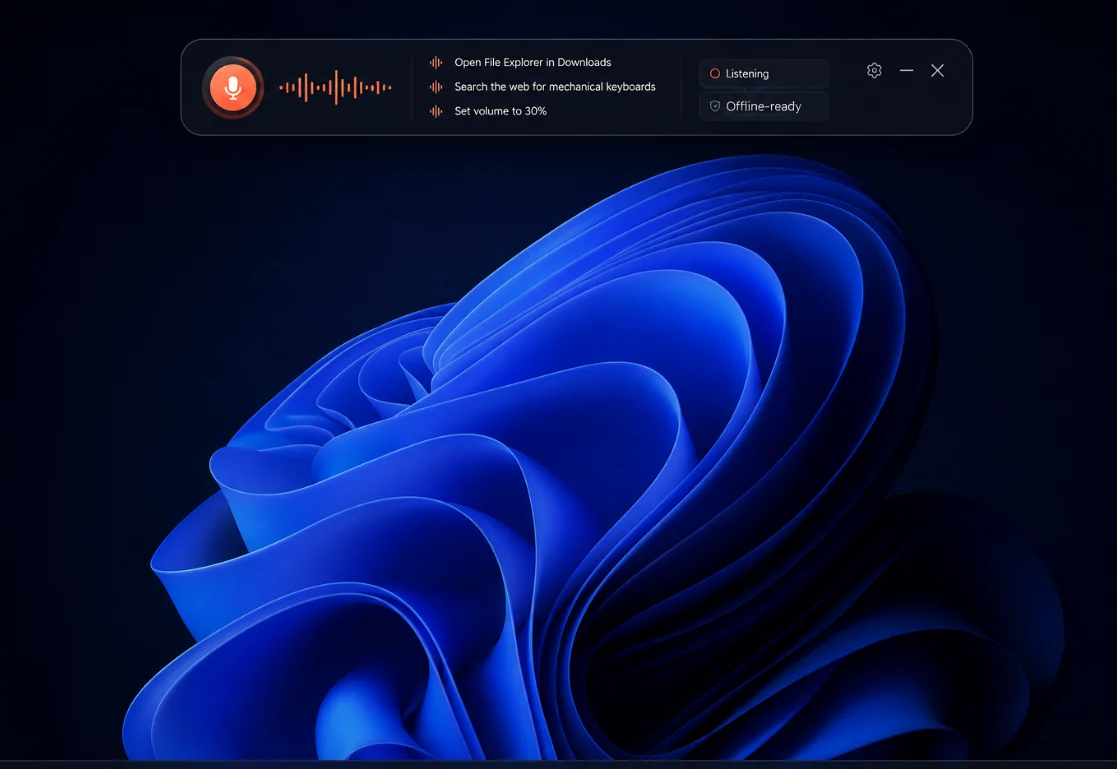
Most desktop assistants either answer questions or automate tasks. This one does both. Ask it
something and you get a spoken answer; tell it to do something and it does it — opens File Explorer
at a specific folder, launches an application, runs a web search and brings up the results, finds a
document you half-remember, mutes your audio or takes a screenshot.
Because intent matching is natural language rather than a fixed phrase list, "pop open my downloads
folder" and "show me downloads" both land in the same place.
The wake word runs entirely on your machine, so the microphone is not streaming anywhere while you
work. Only the request you actually speak is processed, you can see a full history of what was heard
and what was done, and you can switch to push-to-talk if you would rather not use a wake word at
all.
Windows 10 (1903+) or Windows 11, 64-bit. Microphone required; internet needed for web answers.
Version 1.0.0 · 882 KB · ai assistant.zip
Freeware, portable — no installer required.
No. Wake-word detection runs locally and nothing is processed or sent until the wake word or your hotkey triggers a request. You can disable the wake word and use push-to-talk only.
Local actions such as opening apps and folders or changing the volume work offline. Web searches and general knowledge answers need a connection.
English works best today. Additional languages are being added; you can pick your recognition language in settings.
It can launch and focus any installed application and drive Windows itself. Deep in-app automation is limited to apps that expose accessibility or command-line interfaces.
It covers the practical parts people missed when Cortana was retired — opening things, searching and system control — without a Microsoft account.
A floating island at the top of your screen that shows what is playing, incoming notifications, weather, battery and…
Place resizable widgets straight on your desktop: weather, world clocks, calendar, and real-time CPU, GPU, RAM, disk…
Turn any MP4, WebM, GIF or HTML scene into your desktop background, with a different wallpaper per monitor, playlists,…